Time blocking app guide: how to pick one that fits your day
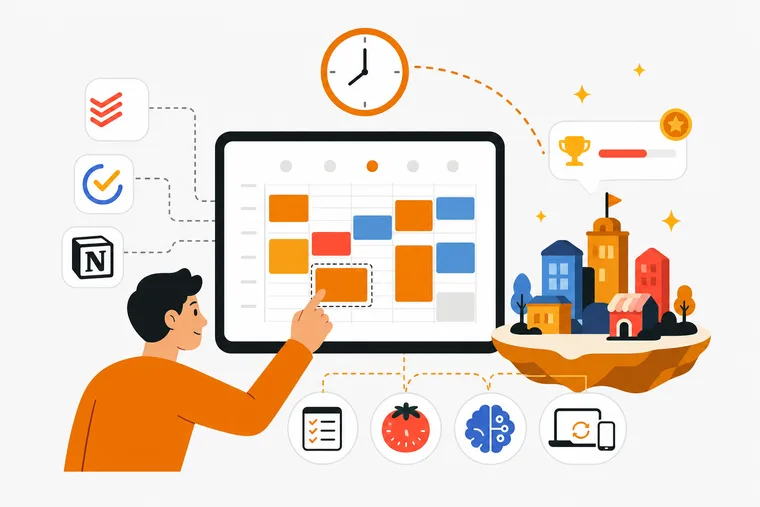
Time blocking is simple in theory: give every task a slot so the day has a shape before it starts. In practice most people quit because maintaining the plan costs more than the plan returns.
The app can reduce that cost, but only some of it. This guide covers what time blocking needs from your tools, which type of app covers which part, and how to combine two rather than hunting for one that does everything.
What time blocking actually asks of an app
Four things, in the order they tend to break.
Fast capture. If adding a task takes more than a few seconds, you stop adding them, and the plan quietly drifts away from the work.
Scheduling you can redo in seconds. Plans change by 10am. If moving a block is fiddly, you will stop moving them and start ignoring them.
Something that protects the block. A block on a calendar is a suggestion. A running timer with notifications silenced is a commitment.
A record of what actually happened. Planned time and spent time are different numbers. If you never see the second one, next week's plan repeats the same mistakes.
The three layers
Almost nobody gets all of this from one app, and that's fine.
- The calendar holds the grid: meetings, slots, drag-and-drop. This is what makes it time blocking rather than a list.
- The task list holds the work: what needs doing, when it is due, what matters most.
- The protection layer holds the block once it starts: a timer, notification silencing, an environment that signals work.
Most tools cover one layer well and one badly. Picking two that do their job beats picking one that claims all three.
Why time blocking falls apart
You schedule 100% of the day. The first overrun pushes everything, and by noon the plan is fiction. Leave a third of the day unblocked. Not as slack, as the thing that absorbs reality.
Blocks have no start ritual. The slot arrives, you open the laptop, and eleven minutes later you are in your inbox. Nothing marked the beginning.
Estimates never get corrected. You keep budgeting 30 minutes for a task that has taken 90 every time for a month. Only a record of finished work fixes that, not a better estimate.
A missed day resets the system. Whatever you use, check what it does when you skip. If the answer is "lose your progress", it is training you to quit after the first bad week.
Where the main apps sit
Names people usually compare, with what each is actually built for. Check current pricing and features on each tool's own page, since those change.
- Todoist and Things 3 are mature personal task managers. Strong capture and scheduling. Neither is a calendar or a timer, so they usually sit alongside one of each.
- TickTick bundles a task list with a built-in Pomodoro timer and a calendar view, which makes it one of the few single-app options for two of the three layers.
- Notion is a workspace you build the system in. Flexible, and the configuration can become its own project. It ships an official MCP server, so agents can work against your workspace.
- Linear is built for software teams and ships an official MCP server with native agent support. Good if your work already lives there, not designed for personal daily planning.
- Habitica turns habits and to-dos into an RPG with parties and guilds. It suits people motivated by a group and a character, and it is a habit layer rather than a scheduling one.
Where Dovilo fits, and where it doesn't
Straight answer first: Dovilo has no calendar grid. No drag-and-drop time slots, no calendar sync. If what you want is to paint your day onto a week view, use a calendar app for that layer.
What Dovilo covers is the other two: the list and the protection. You plan the day as tasks, then start a focus session tied to the task you are doing now. The block is enforced by a running timer rather than by a rectangle on a grid.
For a lot of people that is the layer that was actually missing. The calendar was never the problem. Sitting down at 2pm and doing the thing was.
Task-bound sessions
Pick a task, start a session bound to it, and the timer runs until the work is done rather than until a clock says stop. That is time blocking with the estimate removed, which helps for work you cannot size in advance.
Timer modes
Three modes: a single session of any length, a Pomodoro cycle of 25 minutes on and 5 off with a longer break every 4 rounds, and a session tied to one task.
A short breathing exercise and a countdown ease you in. The timer keeps running in the background and with the phone locked, and Do Not Disturb can silence other apps for the length of the session. Only completed Pomodoro rounds count toward the daily counter.
Ambience
The Default scene is free and silent. The Focus Ambience Pack adds five full-screen scenes: Rainy City, Midnight, Dusk, Snow and Fog, each with its own weather, skyline tint and sound.
The sound mixer blends up to 3 of 12 layers at once, each with its own level: rain, fireplace, forest, waves, café, library, train, thunder, brown, pink and white noise. It is ambience, not music. No melody, no beat.
Tasks
Due dates, repeats, reminders, priorities, stars and flags. One view picker covers My Day, Important, Planned, Flagged, all tasks and your own lists, each with a live count.
The city
Finished tasks and completed focus sessions earn bricks. You spend bricks in the Build Market on houses, offices, parks, roads and decorations, and place them on an isometric grid.
Nothing decays, and no streak punishes you for a quiet week. The city you built in January is still there in December. It is a record of work, not a game state you can lose.
For developers: the MCP server
Dovilo Desktop (Windows and macOS, part of Pro) runs a local MCP server that gives AI coding agents a separate task list, on a monthly quota. Nine tools, read and update only, no create and no delete. Your personal list is not on the tool surface at all.
MCP traffic stays local over stdio, with no Dovilo endpoint in the agent's request path. The AI tasks themselves sync to your phone through Pro cloud sync, which is how you watch an agent's steps and token cost while it runs. Setup takes about 5 minutes: the MCP setup guide.
Pricing and what's free
Free on iOS and Android: unlimited tasks, categories and focus sessions, a starter city, basic statistics, dark and light themes, five languages, offline-first storage, and no ads on any tier.
Pro is $2.49/month, $19.99/year or $49.99 lifetime, with a 7-day free trial started in the mobile app. Cancel before day 7 and nothing is charged. Pro adds cloud sync, advanced statistics, Dovilo Desktop, and both content packs: the Focus Ambience Pack and the Full City Package, each $4.99 on its own. AI task top-up packs start at $0.99 and never expire.
Two things Dovilo doesn't do yet, besides the calendar: there is no data export, and the MCP server is local only, so the agent runs where Desktop runs. Both are on the public roadmap.
How to choose
- Your day is meetings and slots. Start with the calendar you already use and add a task manager that feeds it. The grid is the job.
- You plan fine but don't start. Your gap is the protection layer. A timer bound to the task will do more than a better schedule. That is the case Dovilo is built for.
- You want one app for the list and the timer. TickTick covers both, and Dovilo covers both with a visible reward instead of a calendar.
- You want the work to leave a trace. A city that grows from finished sessions is a different kind of feedback than a completion percentage. Whether that matters is a question about you, not about features.
- You delegate work to coding agents. Keep the agent's tasks on a separate surface from your own. Dovilo does that locally on Desktop, and Linear and Notion do it against your main workspace.
Frequently asked questions
What is a time blocking app? An app that helps you assign tasks to specific parts of the day. In practice it takes three things: a calendar for the slots, a list for the work, and something that protects the block once it starts.
Does Dovilo have a calendar view? No. There is no calendar grid and no calendar sync. Dovilo covers the task list and the focus session. If you want a week view, pair it with your calendar app.
How much of the day should I block? Leave at least a third unblocked. The first overrun has to land somewhere, and if it lands on the next block the whole plan goes with it.
What if the block arrives and I don't start? That is a protection problem, not a scheduling one. Start a timer before you open the work, and silence notifications for the length of it.
Is Dovilo free? Yes, on iOS and Android, with unlimited tasks, categories and focus sessions and no ads. Pro adds cloud sync, advanced statistics, the desktop app and both content packs, from $2.49/month with a 7-day trial started in the app.
Does the city reset or decay? No. Every building stays. Nothing is lost for a missed day or a quiet week.
Can I use Dovilo with Claude Code or Cursor? Yes, on Desktop with Pro. Nine tools, read and update only, on a task list that is separate from your personal one. Claude Code, Claude Desktop, Cursor, Windsurf, Codex CLI and Gemini CLI have presets; any other MCP client connects with a JSON config.
Time blocking works when the system costs less than it returns. Most of that cost is in replanning, and most of the benefit is in actually starting. Pick a calendar you already open, a list you trust, and something that holds the block once it begins, then give the setup two weeks before you judge it.
Dovilo covers the last two, free on the App Store and Google Play.