Task management for AI coding agents: a Dovilo MCP setup guide
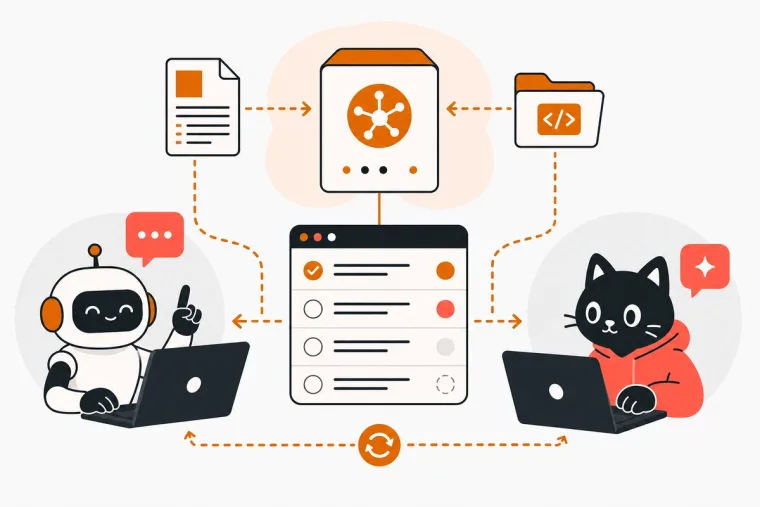
If you run coding agents on multi-step projects, you have probably hit this wall: the agent finishes a session, context resets, and the next run has no idea what was done, what is still in progress, or what comes next. The fix is to give the agent a persistent, structured task list it can read and update between sessions. This guide walks through how to do that with the local MCP server in Dovilo Desktop.
I built this layer because I wanted my own coding agent to work a real task list instead of a scratch file. One engineer, in Istanbul. What follows is exactly how it works, including what it doesn't do yet.
The problem: agents lose the thread between sessions
Claude Code, Cursor, Windsurf, Codex CLI, Gemini CLI and Claude Desktop can all handle complex, multi-step work. Most of them can plan inside a session, and several read a rules or memory file you maintain. What none of that gives you is a shared task list with real status, that survives between sessions and that you can check from your phone.
Pasting a task list into a prompt works for one session. By the third, you are re-explaining context, re-stating what is finished and tracking state in a doc somewhere.
What you want is a list the agent reads at the start of a session, updates as it works, and leaves in a known state when it stops. That is a task manager problem, not a prompting problem.
What MCP is (the short version)
The Model Context Protocol is an open standard that lets AI agents call external tools through a defined interface. Linear and Notion both ship official MCP servers.
What varies between implementations is what the server exposes, where it runs and what the agent is allowed to do. Those details matter more than the protocol itself.
How Dovilo's MCP server works
The MCP bridge ships inside Dovilo Desktop. No npx, no separate runtime. Your agent client starts it as a local process and talks to it over stdio.
There is no Dovilo internet endpoint in the agent's request path, and no MCP traffic goes through Dovilo. The only external call is your agent talking to its own model provider, whichever one you have configured.
The AI tasks themselves sync to your phone through Pro cloud sync, encrypted in transit and at rest. That is how the agent's step trail shows up on mobile while it works on your desktop.
Full integration details are at dovilo.app/ai.
Setting up Dovilo's MCP server: step by step
Setup takes about 5 minutes.
Step 1: Start the Pro trial on mobile
Dovilo Desktop is part of Pro: $2.49/month, $19.99/year or $49.99 lifetime. Every plan has a 7-day free trial, started in the iOS or Android app. Cancel before day 7 and nothing is charged.
Get the app on the App Store or Google Play.
Step 2: Install Dovilo Desktop and sign in
Download Desktop for Windows or macOS and sign in with the same account you use on mobile. Release notes are in the changelog.
Step 3: Connect your agent client
In Desktop, open Settings > AI > Connect AI, pick your client and restart it.
- Claude Desktop is wired automatically.
- Claude Code, Cursor CLI, Codex CLI and Gemini CLI get a single
mcp addcommand to paste. - Cursor GUI, Windsurf and any other MCP client get a JSON snippet with the bridge path and your API key:
"command": "<dovilo-bridge-path>","env": {"DOVILO_API_KEY": "<api-key>"}. Desktop fills in both values.
To verify in Claude Code, run /mcp. You should see "Dovilo connected, 9 tools". Plain MCP, no lock-in.
Step 4: Create a project and write the brief
AI tasks live inside projects. Each project has a brief the agent reads first: goals, constraints, conventions and what to leave alone. An agent sees only the tasks and brief of the project it is scoped to.
Step 5: Add tasks in the AI Tasks tab
Add the jobs you want the agent to work through, on desktop or from your phone. This list is separate from your personal My Tasks list, which the agent cannot see.
Step 6: Ask the agent to start
The agent does not start on its own. Ask it in plain language, for example: "take my next Dovilo task and work it". It reads the brief, picks up a task and reports back as it goes.
The 9 tools: read and update only
The server exposes 9 tools, 3 read and 6 write, all scoped to AI tasks in one project.
| Tool | Access | What it does |
|---|---|---|
list_tasks |
read | AI tasks in the scoped project, with status |
get_task |
read | One task in full: description, steps, notes, telemetry |
read_context |
read | The project brief and the context the task carries |
update_status |
write | Moves a task between statuses |
update_step |
write | Marks a plan step started or finished |
add_step |
write | Appends a step the agent discovered |
skip_step |
write | Skips a step that turned out unnecessary |
append_note |
write | Records what it did, decided or could not do |
append_telemetry |
write | Reports model, tokens, cost and duration |
The agent writes status, steps, notes and telemetry. It cannot edit the task you wrote, it cannot create tasks and it cannot delete anything.
That is deliberate. Creating and deleting work are decisions that stay with you. An agent that can create tasks will create tasks, and an agent that can delete tasks can lose work.
Two more limits: the agent cannot see other projects, and if you switch MCP off in Desktop settings, connections drop immediately.
Why the personal list is invisible to the agent
My Tasks is Dovilo's personal to-do list, where you track your own work.
It is not on the MCP tool surface at all. There is no filter that hides it and no setting that could be misconfigured. The agent has no tool that reads it, updates it or reveals that it exists.
That keeps ownership clear. The AI Tasks list is the agent's workspace. My Tasks is yours.
Statuses, steps and telemetry on the phone
Every AI task moves through the same statuses: queued, running, awaiting-user, done, or failed / cancelled.
awaiting-user is the important one. When the agent needs a decision it cannot make, it sets that status and stops, instead of guessing.
On mobile, the step trail, notes and telemetry land on each task in real time while the agent runs on your desktop. The list is grouped by what needs you: awaiting you, running, queued. Finished work moves to "Recently done" with its step count. Notifications come in two modes: every step, or only start, finish and error.
Telemetry is per task and reported by the agent through append_telemetry: model, tokens, cost and duration. Over time it shows you which kinds of tasks are cheap and which are expensive for a given model.
Webhooks: tell your own systems a task moved
Desktop can send signed webhooks when an AI task changes, to Slack, Linear, n8n, LangGraph or any HTTPS receiver.
- Events:
task.createdandtask.status_changed, which carriespreviousStatus. A test button sendswebhook.ping. - Setup: open a project, go to Webhooks, paste the URL, generate a signing secret and enable it. The secret is shown once and stays in your OS secure storage, never synced.
- Signature:
X-Dovilo-Signaturecarries a timestamp and an HMAC-SHA256 of the raw body, with a 5-minute replay window. - Delivery:
X-Dovilo-Deliverystays the same across retries, so use it as your idempotency key. Up to 5 retries, in order per task.
Payloads are slim on purpose. The webhook tells your system a task moved, and MCP is how the agent then reads it, works it and reports back.
The open-source LangGraph demo runs that loop end to end, and there is a walkthrough video. Full reference, with verification code in Node, Python and Go: dovilo.app/docs/webhooks.
A real workflow example
You have a project whose brief describes a TypeScript API: stack, test conventions, and "don't touch the billing module". The AI Tasks list has five jobs:
- Add input validation to the user endpoint.
- Write unit tests for the auth module.
- Fix the pagination bug in the posts query.
- Update the README with the new env vars.
- Refactor the error handler to use a shared utility.
You open Claude Code and say "take my next Dovilo task and work it". The agent reads the brief, lists the queued tasks, opens the first one and sets it to running.
It marks each plan step as it finishes it. While fixing pagination it finds the query needs an index, so it adds that as a new step. On the error handler it hits a choice that would change the API's error format, so it writes a note explaining the trade-off, sets the task to awaiting-user and stops.
Your phone shows the question. You answer, and the next session picks it up.
If a session ends mid-task, the task stays running with its step trail and notes. The next session reads it with get_task and continues from the last finished step.
No re-pasting context, no manually updated doc. The task list is the source of truth.
What Dovilo doesn't do yet
Three things, named plainly.
- No remote MCP. The agent must run on the same machine as Dovilo Desktop, so remote servers and CI won't work yet. A remote MCP server is on the public roadmap.
- No data export. Also on the roadmap.
- No desktop-only trial. The 7-day trial starts in the mobile app.
I'd rather say that here than have you find out after setup.
Requirements and compatibility
- Dovilo Desktop for Windows or macOS, included with Pro.
- Pro: $2.49/month, $19.99/year or $49.99 lifetime, with a 7-day free trial started in the mobile app.
- Clients with presets: Claude Code, Claude Desktop, Cursor (GUI and CLI), Windsurf, Codex CLI, Gemini CLI. Any other MCP client connects with the JSON snippet.
- AI tasks run on a monthly quota. One-time top-up packs of +10, +30 or +75 tasks start at $0.99 and never expire.
Frequently asked questions
Does MCP traffic go through Dovilo's servers? No. The bridge runs locally inside Desktop and your client talks to it over stdio. The only external call is the agent talking to its own model provider. AI tasks sync to your phone through Pro cloud sync, which is how you see progress on mobile.
Can the agent see my personal to-do list? No. My Tasks is not on the MCP tool surface at all. The agent sees only the AI tasks and brief of the project it is scoped to.
Can the agent create or delete tasks? No. The 9 tools are read and update only. The agent can change status, steps, notes and telemetry, and nothing else.
Which agent clients are supported? Claude Code, Claude Desktop, Cursor, Windsurf, Codex CLI and Gemini CLI have presets. Any MCP client that accepts a JSON config works too.
What happens if I switch MCP off? Connections drop immediately and the agent can't keep working through Dovilo.
Can I run the agent on a remote server? Not yet. The agent must run on the same machine as Dovilo Desktop. Remote MCP is on the public roadmap.
How does the quota work? AI tasks run on a monthly quota, shown in the AI Tasks view on mobile. If you need more, one-time top-up packs start at $0.99 and never expire.
Get started
If you run coding agents on multi-step work and want a persistent task list they read and update between sessions:
- Start the 7-day free trial in the mobile app: App Store or Google Play.
- Install Desktop for Windows or macOS.
- Connect your agent client.
Read the integration before you install anything: dovilo.app/ai.